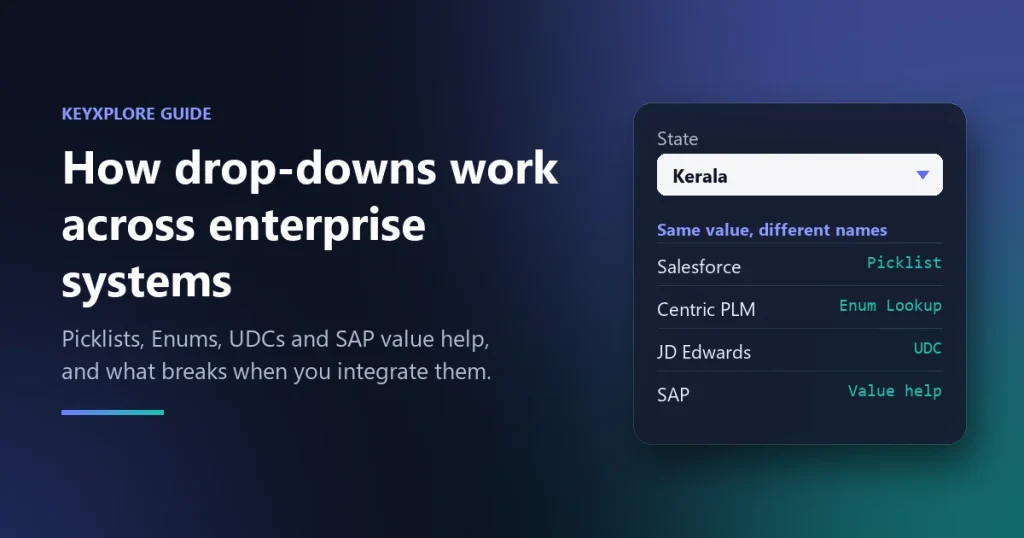
Sit in on an integration meeting between a Salesforce team, a PLM team and an ERP team, and you’ll hear the same thing described four different ways. One person says “picklist.” Another says “enum.” The JD Edwards consultant says “UDC,” and the SAP folks talk about “check tables” and “F4 help.” Everyone is talking about the same humble drop-down, and nobody is quite sure the others mean the same thing.
They mostly do. Every business system needs a way to limit a field to a fixed set of values, and the drop-down on screen is just the visible end of a controlled list stored behind it. Under all the vendor vocabulary, two patterns keep showing up:
- A simple list defined directly on one field.
- A shared, reusable list that many fields (or many systems) draw from — often holding more than one value per entry.
Here’s how Salesforce, Centric PLM, JD Edwards and SAP each handle these, what they call them, and why the difference starts to matter the moment you connect two of them.
Salesforce: picklists
In Salesforce a drop-down is a picklist, and it comes in two flavours:
- Normal picklist. You type the values straight into the field, so they belong to that field alone.
- Global picklist (a global value set). The values live in one central place and any number of fields can reuse them. Make “Color” a global value set, and both a Band field and a Bag field can pick from it — add a new colour once and both fields get it.
Separately from that, a picklist can be single-select or multi-select (several values stored in one field). Salesforce also has restricted picklists, which reject anything not on the list, and dependent picklists, where the choice in one field filters the options in another — pick a country, and the state list narrows.
Centric PLM: Enum and Enum Lookup
Centric follows the same two-level idea, with different names.
- Enum is the everyday drop-down: a key and one value, defined on the field. Enums cap how many values they can hold, so check the current limit with Centric before you plan a long list around one.
- Enum Lookup is the shared version, stored internally as a table. Each entry has one key and several columns, so a single key can carry multiple values.
Why the extra columns? Because different systems want different versions of the same value:
| Key | Column 1 | Column 2 | Column 3 |
|---|---|---|---|
| India | IN | IND | |
| Karnataka | 02 | KA | KAR |
The record itself stores only the key. When Centric sends data to another system, it looks the key up in this reference table, picks the column for that system, and sends that system’s version of the value. If you’ve built a lookup table for a Marketo integration, it’s the same pattern: one column is the key, the rest are reference values for different targets. In Centric, each ERP gets its own column.
One thing not to mix up: segments. A segment is a category — say, the fibre makeup of a fabric, with segment 1 for cotton, segment 2 for linen and segment 3 for plastic. Each segment is just another drop-down field, built as an Enum or an Enum Lookup. Segments are a way of organising fields, not a third kind of list.
JD Edwards: UDCs
JD Edwards calls a drop-down list a UDC — a User Defined Code. Each UDC belongs to a code type within a product group, and each entry is simply a code and a description. Programs validate fields against these codes and show them as a list. You maintain them through the UDC applications, and they’re stored in two tables: F0004 for the code types and F0005 for the values.
A UDC is the closest cousin of a Centric Enum: one code, one description. And when you’re talking to JD Edwards people, say “UDC” — you’ll be understood immediately.
SAP: value help, check tables and domain values
SAP doesn’t have a single word for a drop-down at all. The behaviour comes from how the field is defined in the ABAP Dictionary (transaction SE11), and there are four mechanisms you’ll run into:
| Mechanism | What it is | Typical use |
|---|---|---|
| Domain fixed values | A short, static list attached to the field’s domain | Status or type flags; shown as a drop-down list box on classic screens |
| Check table | The field is validated against a master or customizing table (a foreign key) | Country (T005), region (T005S), with descriptions in a text table such as T005U |
| Search help (value help, F4) | A pop-up or inline list of values, possibly filtered by other fields | Long lists such as customers, materials or banks |
| Customizing tables | Lists set up by functional consultants (SPRO, SM30) and transported between systems | Company-specific codes |
In newer Fiori and CDS-based apps, the same lists reach the screen as a combo box or select control, wired up through value-help annotations such as @Consumption.valueHelpDefinition.
The key thing to understand: the user sees a description, but SAP stores a short code. A country is stored as IN, with the ISO three-letter and numeric codes kept alongside it in the country table. A region is stored as whatever code is configured in the region table.
And that’s where integrations get interesting. Those codes live in each SAP system’s own customizing, so two SAP systems can use different codes for the same real-world thing. Imagine an SAP India system that expects 03 for Kerala, while SAP Vietnam expects KE. Both are “Kerala.” Neither code means anything to the other system. That’s exactly the gap Centric’s Enum Lookup columns are designed to fill.
The integration catch: which column gets the update?
Once an Enum Lookup is shared by several ERPs, the same key can arrive from different systems carrying different codes. So the mapping has to depend on who’s sending:
| Request from | Key sent | Code sent | Column it should update |
|---|---|---|---|
| SAP India | Kerala | 03 | Column 1 (SAP India) |
| SAP Vietnam | Kerala | KE | Column 2 (SAP Vietnam) |
| SAP Vietnam | Keral (typo) | KL | Nothing — but it would quietly create a new row |
What you want at the end is a single Kerala row holding both 03 and KE. Getting there means agreeing four rules with the Centric team before the metadata is finalised:
- The sender decides the column. The payload mapping changes depending on which ERP is calling.
- Keys must match exactly. A one-character difference creates a new row instead of updating the existing one.
- An update touches only the sender’s column. Blank values for the other columns must never overwrite what’s already there.
- Repeats change nothing. If the same ERP sends the same value again, nothing new should be added.
If you’re not sure today where an incoming value actually lands, don’t assume — test it. Pick a drop-down that both SAP systems use, like country or state. Note the current value of one entry, update it from one SAP system through a REST call, and check that only that system’s column changed. Then do the same from the other system. A real before-and-after like that makes the conversation with the Centric team far quicker than any diagram.
Cheat sheet: what to call it, and with whom
Use each team’s own word and half the confusion disappears.
| System | Simple list on the field | Shared or multi-value list |
|---|---|---|
| Salesforce | Picklist | Global picklist (global value set) |
| Centric PLM | Enum (key and value) | Enum Lookup (key and several columns) |
| JD Edwards | UDC | UDC (one code table, one description) |
| SAP | Domain fixed values | Check table, search help (value help), customizing table |
Three things worth remembering
- A drop-down shows a description, but systems store and exchange a key or code. Map codes, not labels.
- Shared lists save you repeating the same setup — and in Centric, they let one key carry a different code for each ERP.
- When several systems feed one shared list, agree up front which column each source updates and how keys are matched. It’s a ten-minute conversation that saves weeks of cleaning up duplicate rows.
Connecting Salesforce, a PLM or an ERP and fighting mismatched codes? That’s the kind of integration work we do at KeyXplore — tell us what you’re connecting.